10 Amazing Facts about Google+ Statistics

[a href="https://blogger.googleusercontent.com/img/b/R29vZ2xl/AVvXsEiU9qWVUEquvXffz6WwmzUoKHJ00KAxa11nrhCsQ-VOEvmVnXnxFE037gOvJDEPnsJB7rozX0JnsmOAewmuVAE0-qzRc8SxvUbyWsGAWBARvlXoQN1MZr2jJv8oi5w5Qzk-t3rtKw8R8FA/s1600-h/google-plus-red-360%25255B6%25255D.jpg"]google-plus-red-360[/a][a href="http://www.mybloggertricks.com/2011/07/what-is-google-plus-project-is-it.html" target="_blank"]Google+[/a] is growing fast and since Google has still not revealed the real statistics therefore interesting information is continuously coming from major sites that track traffic. According to Experian Hitwise Googe+ has started building up great traffic and is quickly [a href="http://www.mybloggertricks.com/2011/07/how-to-increase-website-traffic-with.html" target="_blank"]increasing in numbers[/a]. The exact number of Google+ users is still not known but according to many third party analytics the current number of active registered Google Plus users is no less than 20-30 Million. Lets now read some interesting new stats for Google Plus from Hitwise and some other sources.

[a name='more'][/a]


  1. Around 13% U.S. Adults have signed up for Google+ and the number can hit 22% in a year. This will let Google+ become the number two social media network beating twitter and linkedIn.
  2. From July 16 onwards, Google+ has become the 42nd most-visited social networking site in U.S. and the 638th most-visited site on the world wide web
  3. Google+ has grown by 821% from the week ending on July 2, the first week Google+ was made available to its users.
  4. Around 56% of Google+’s traffic come from Google services itself. 34% come from Google.com, 37% from other search engines and 21% from Email services which includes Gmail
  5. Google+ is visited mostly by adults of age between 25-34. They account for 38.37% of all visits
  6. Los Angeles, New York City and San Francisco are the most dominant locations driving traffic to Google+ than any other place globally
  7. 55% traffic comes from USA and 18% from India
  8. 71% are Males and 21% Female Users
  9. 29% Google+ users are engineers by profession, 17% developers and 14% Designers.
  10. There are currently 25-30 Million Active Registered Google+ Users.

These were some stats that I could gather so far and all these facts are estimated figures and are not officially endorsed by Google Inc. itself.

What do you think?

Do you think Google+ will be able to capture a major portion of Facebook’s market. Development is still under progress and it is expected that Google will soon launch Games and other options for users and developers. How far do you think this new social network can go?

Source: http://www.mybloggertricks.com/2011/08/10-amazing-facts-about-google.html

How To Delete/Moderate Comments in Facebook Comments Box?

By default comments are organized by social ranking which means that only those user comments' will be displayed at top who has good reputation on Facebook.

If you want the newest comments to be displayed at top and oldest at bottom then choose Reverse Chronological

I just hope this little info helps most of you. I will introduce Facebook comment count very soon. So keep in touch and [a href="http://feedburner.google.com/fb/a/mailverify?uri=TntByStc&loc=en_US" rel="nofollow" target="_blank"]subscribe now[/a] so that you may not miss any update as we update the blog several times per day.

Source: http://www.mybloggertricks.com/2011/08/how-to-deletemoderate-comments-in.html

Is your Blog slowing down due to MyBlogLog Termination?

[a href="https://blogger.googleusercontent.com/img/b/R29vZ2xl/AVvXsEiIpK42JPZw3VbhEBdPWoTuq0MKb554FVGeB09a_a_PEJulRN7jEwWkZwl2pvQGuhAjPXXahbj_NLaY_oxBH5GNT-CzsvgK-9xQsVNplhxyVNry6msdm0m-07MVv3uzCHXteOrQCVv-22g/s1600-h/mybloglog-terminated%25255B5%25255D.gif"]mybloglog-terminated[/a]I was facing blog load time issues this week so I started looking at codes that were causing the problem. After a lot of trial and error I finally found the code responsible for slowing down the site load time. It was the code snippet provided by Mybloglog. I was confused as why it was behaving like this because being a yahoo service Mybloglog server’s should be fast in response as it is a social networking platform for bloggers provided by Yahoo. But then I read on Wikipedia that On February 24, 2011 Yahoo announced that the MyBlogLog service would be terminated on May 24, 2011. The code snippet was not causing problems till the end of July but it caused me great troubles in August. Since MyBloglog is no more so there is no use of keeping its code on your templates. Delete the code so that your blog may load at better speed.

[a name='more'][/a]


Remove MyBlogLog Code From Your Templates

  1. Inside your templates search for track.mybloglog.com
  2. You will find it enclosed in a similar code like this one,

<script src='http://track.mybloglog.com/js/jsserv.php?mblID=2009033019163361' type='text/javascript'/>
 

   3.    Remove this entire code and save your template.

   4.    You are done!

Your blog will now load at a much better speed because now the browser doesn’t need to load or look for mybloglog code. Keep your blogs healthy and stay healthy. Peace out!. :>

Source: http://www.mybloggertricks.com/2011/08/is-your-blog-slowing-down-due-to.html

Releasing Facebook Template For Custom Tabs

       5.   Switch to the Source mode as indicated by the blue arrow in the image above. Paste the Code you copied from the notepad inside it.

       6.  Now switch to Editor and make the necessary editing easiliy like you normally do in any html editor.

       7.  After you are done with editing, hit the save settings button and then click your Tab to see it in action!

save settings

Final View:

Facebook template design

Copyright

All rights are strictly reserved by MBT Blog. You can not redistribute the templates without our permission. If you wish to share the tutorial or code with your readers then you may first contact us.

Premier Services

We also design templates and Icons at premier level. If you want a completely unique and new design for your business website then you may [a href="http://www.mybloggertricks.com/2009/03/contact-me.html" target="_blank"]contact us[/a] for details.

Source: http://www.mybloggertricks.com/2011/07/releasing-facebook-template-for-custom.html

Customize Google Plus : 14 ways To Change Its Look!

  • [a href="https://chrome.google.com/webstore/detail/oenpjldbckebacipkfbcoppmiflglnib" rel="nofollow" target="_blank"]Extended Share for Google Plus[/a]

2. Send and Receive Tweets on Google Plus!

You integrate your twitter account into Google plus by installing the following extension. You will have complete control over your tweets. You can read and post tweets as you wish.

Google+ Twitter

  • [a href="http://www.mybloggertricks.com/2011/07/add-twitter-to-google-plus-send-receive.html" rel="nofollow" target="_blank"]Google+ Tweet[/a]

3. Hide or Show Google Plus Comments

Hide Show Google+ commentsThis Chrome extension will let you add a show or hide comments link below each of your Google+ posts.

  • [a href="https://chrome.google.com/webstore/detail/mnhiknfpdlpmmgmecadnffgmgpgaldlo?ct=author" rel="nofollow" target="_blank"]+Comment Toggle[/a]

4. Hide Google Plus Sidebars

This Chrome extension will let you hide the left and right sidebars or columns, thus making your main content area wider and broader providing a better experience.

  • [a href="http://wittman.org/google-plus-extensions/" rel="nofollow" target="_blank"]Google+ Hide Sidebars[/a]


5.  Hide Google Plus Notification

This extension will hide the little red Google Plus notification from the Google toolbar. If you think those notifications are irritating then this app is for you!

  • [a href="https://chrome.google.com/webstore/detail/ogcfegjiehdakiogchpnllekccphhebd" rel="nofollow" target="_blank"]Hide Google+ Notification[/a]

6.  Count Unread Notifications

This little extension will display the red notifications count for unread updates only. You don't have to search which of the notifications is the new one amongst old crowded shares. Just get notified with fresh events, photos and comments only.

  • [a href="https://chrome.google.com/webstore/detail/ehcjeejpbinpibjicmpcdeenfmehlpjk" rel="nofollow" target="_blank"]Notification Count for Google Plus[/a]

7.  Zoom Photos on Google+

You can now enlarge the size of your photos for better visibility by zooming pictures out and in. It will help you see every little detail inside a photo.

photo zoom google+

  • [a href="https://chrome.google.com/webstore/detail/njoglkofocgopmdfjnbifnicbickbola" rel="nofollow" target="_blank"]Google+ PhotoZoom[/a]

8. Access Google+ From anywhere

This extension will let you share posts, read comments and see what's hot on Google Plus from anywhere. You don't necessarily be on Google Plus to find new stories. You will receive notifications on your browser while you browse through other webs.

surplus

  • [a href="https://chrome.google.com/webstore/detail/pfphgaimeghgekhncbkfblhdhfaiaipf" rel="nofollow" target="_blank"]Surplus[/a]

9.  Share Google Plus Posts on Twitter & Translate Them

You can not just share what you post on Google+ on twitter but you can also translate your posts in any language you want. Small Twitter and Google Translate links will appear just below your Post share box and you will have the choice to post or not to post them on twitter. If you want to share a post in a different language with some of your friends you can also do that by clicking the Translate link.

Translate Google+ Posts

  • [a href="https://chrome.google.com/webstore/detail/hehfpbphnjppmganambkgdnkfliaipgd" rel="nofollow" target="_blank"]Helper for Google+[/a]

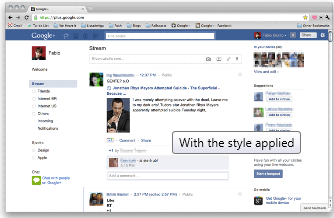
10. Change Google+ Into Facebook

imageIf you want to turn your Google Plus Interface and look into Facebook then install the following app which will completing change the color scheme of Google+ into Facebook Fonts and colors.

  • [a href="http://userstyles.org/styles/50051/google-facebook" rel="nofollow" target="_blank"]Change Google+ To  Facebook[/a]

11.  Back To Top and Bottom Scroll Button For Google+

scroll buttons for Google+Its more like our blog back to top button which takes you to the top of your Google+ page if you are at the bottom and vice versa. This provides quick and easy navigation.

  • [a href="https://chrome.google.com/webstore/detail/chiikmhgllekggjhdfjhajkfdkcngplp" rel="nofollow" target="_blank"]Scroll To Top Button[/a]

12.  Hide Images On Google+

If you are sick of those high graphics animated images appearing on original and shared posts then you better get rid with them using this useful easy to use Chrome Extension.

  • [a href="http://wittman.org/google-plus-extensions/" rel="nofollow" target="_blank"]Google Plus Hide Images[/a]

13.  Search Google Plus with Google Search Engine

I guess this app will be loved by all. The extension will replace your current Google+ find People box with custom Google Search engine. You can apply all Google Search box tricks to Google+ then for finding photos, videos and other stuff using this extension.

  • [a href="http://wittman.org/google-plus-extensions/" rel="nofollow" target="_blank"]Google Plus Search With Google[/a]

14.  Split Google Plus To Two Columns

This extensions works with mozilla also. It splits your Stream page into two columns display new posts more neatlly with a more comfortable look. You will find detailed tutorial on this by reading this post:

  • [a href="http://www.mybloggertricks.com/2011/07/customize-google-stream-layout.html" rel="nofollow" target="_blank"]Liquid G+[/a]
Source: http://www.mybloggertricks.com/2011/07/customize-google-plus-14-ways-to-change.html

Facebook Video Calling: How To Set Up & Start a Video Call?


UPDATE: Please also read Facebook Video settings for best [a href="http://www.mybloggertricks.com/2011/08/facebook-webcam-settings-for-quality.html"]quality color display by setting up webcam[/a]


Facebook video callingFacebook has finally started filling up the missing blanks on their social network as an answer to Google Plus Project. Together with Skype, Facebook has launched its first ever [a href="http://www.facebook.com/videocalling" rel="nofollow" target="_blank"]Video Calling[/a] option on there website. Facebook Users can now not only chat but they can now see their loved ones smile, wink and say lol face to face! So far there are no latency issues and video calling loads faster and works without pauses or any other pros. You don't need to install any software or application to make this function work. Below you will find some useful Facebook video calling tips.

[a name='more'][/a]


How do I set up video calling?


To start a video call with a friend you will first need to complete a quick, one-time setup:


  1. To call a friend, click the video icon at the top of your chat window.

  2. Simply click the “Set Up” button and follow the easy instructions for how to set up video calling on your favorite browser.

  3. Once installed successfully the video call will start automatically or you can ring back your friend by clicking the video call button at the top right corner of your friends profile


How do I start a video call with a friend?


After the one-time set up you are now ready to make your first call:

set up video call


  1. Visit your friend’s profile and click the “Call” button in the top right corner. You can also click the video icon at the top of the chat window.

  2. When your friend answers, be patient and wait for sometime till both your web cams are inter connected.

  3. If your friend is unavailable or offline, you can leave a video message. That's indeed more like Yahoo's Voice service.


For all these steps to correctly work you must make sure that both your webcam and microphone are connected to the right slots and are in a running condition. You can still use video calling even if you don't have a webcam. You will be able to talk to and see your friend but your friend will be able to hear your voice only.


UPDATE: Though Facebook video calling is still a work under progress but you may find these tips useful in future. I will keep you updated with all the latest new few features.

Source: http://www.mybloggertricks.com/2011/07/facebook-video-calling-how-to-set-up.html

I Lost My Brother…

My friend, my brother, half of my life was shot dead on 24th July 2011 while he was in car drinking tea with a friend. Both of them were killed with brutality by monsters who have taken over our town, city and country. He was shot six times, on hand, chest, face and head and his closest friend was shot four times.. He was 24 years of age and two years older than me. My eldest brother and I were planning to get him married. I was working hard day and night so that I could play my part as a brother for his marriage ceremony. Whatever revenue that I generated was used in washing his blood.  I was about to give my friends and you all a surprise but God had even a  bigger surprise for me and my family. I have lost a shoulder..

I have never cursed someone in my life as I did those murderers who kill for pleasure. With Allah as the guide and Lord this innocent’s martyrdom wont go in vain. I was collapsed the day I saw his blood on my hands and face but after what my family saw in a dream our hearts are filled with hope. I am proud he lived a life of a common man but died as a martyr.

Death be upon those monsters who have left several homes in grief! Devils!..

Whether you are Hindu, Christian or Muslim.. I beg you pray for my brother and my parents. His name is Mohammad Shareef.

Source: http://www.mybloggertricks.com/2011/07/i-lost-my-brother.html

Google+ Video Calling: How To Set Up a Video Call?

Google Plus video chatGoogle Plus is the name you hear everywhere today. Google+ uses all major services of Google thus making it the most complete social networking site ever. It gives you an option of both Chat and Video Chat. Amazingly you can not just have to worry about your privacy issues as you did on Facebook but now you can even talk to your friends face to face by making a video call straight from your own Google+ account! This is the plus point of Google+ over Facebook. Google developers have used the same Gmail video chat algorithm to provide you with an option of both chat and video calling. Having a webcam is not a must because you can still see your friends cam with highly quality audio and video. There are however some setup guide and installation steps that you must take to successfully make and receive video calls. Lets jump straight at the tutorial.

[a name='more'][/a]

Note: Voice and video in G+ only works with the newer version of browsers i.e. FF 2.0+, IE 6.0+, Safari 3.0+, and Google Chrome

How To Install & Enable Google+ Video Calls?

Follow these easy steps

  1. Go To [a href="http://www.google.com/chat/video" rel="nofollow" target="_blank"]Google+ Video Chat Plugin[/a]  and download the plugin. It takes 2-5 seconds to install it.

Google+ video chat     2.   Congratulation you have successfully set up a Video Calling plugin for your Google+

Now you will need to learn how to make a video call on Google Plus. For that kindly read the post below:

  • [a href="http://www.mybloggertricks.com/2011/07/how-to-make-and-receive-video-calls-on.html" target="_blank"]Make and Receive Video Calls on Google+[/a]

I hope you will enjoy these posts too:

  • [a href="http://www.mybloggertricks.com/2011/07/customize-google-plus-14-ways-to-change.html" target="_blank"]14 ways to Customize Google+[/a]
  • [a href="http://www.mybloggertricks.com/2011/07/how-to-invite-friends-in-google-plus.html" target="_blank"]How To Create Circles in Google Plus[/a]
Source: http://www.mybloggertricks.com/2011/07/google-video-calling-how-to-set-up.html

How To Make and Receive Video Calls on Google+ ?


You will also enjoy these tricks:

  • [a href="http://www.mybloggertricks.com/2011/07/customize-google-stream-layout.html" target="_blank"]Customize Google+[/a]
  • [a href="http://www.mybloggertricks.com/2011/07/customize-google-plus-14-ways-to-change.html" target="_blank"]Change Google Plus Look[/a] in 14 ways!
Source: http://www.mybloggertricks.com/2011/07/how-to-make-and-receive-video-calls-on.html

Google+ Keyboard Shortcuts and ASCII Tricks


╠╛


۞


۝


®


½


¾


¼


©


¢


ﺁ ﷲ


(-’๏_๏’-)


(◐ o ◑ )


(⊙…⊙ )


(•ิ_•ิ)


(•ิ_•ิ)

๏[-ิ_•ิ]๏


(/•ิ_•ิ)

(¯`•¸•´¯)

εїз

ღღღ


Why not use these artistic ASCII characters to create impressive and eye-catching posts and comments:

▁ ▂ ▃ ▄ ▅ ▆ █ 100%
─▀██▀───▀██▀─▀██──██─▀██▀▀ ▀─
──██─────██───██▄█▀───██▄█───
──██─────██───██▀█▄───██▀█───
─▄██▄▄█─▄██▄─▄██──██─▄██▄▄ ▄─ Thank you!

 ______  __                       __               __     
/__ _/ / /
/_/ / ___ __ ___ /' ____
_ ` /'__` /' _ ` , < /',__\
/ L._/ / \` /__, `\ _
_ _ _ __/._ _ _ _ _/____/ /_
/_/ /_//_//__//_//_//_//_//_//___/ /_/


_/_/_/_/_/ _/ _/ _/
_/ _/_/_/ _/_/_/ _/_/_/ _/ _/ _/_/_/ _/
_/ _/ _/ _/ _/ _/ _/ _/_/ _/_/ _/
_/ _/ _/ _/ _/ _/ _/ _/ _/ _/_/
_/ _/ _/ _/_/_/ _/ _/ _/ _/ _/_/_/ _/


 _____  _                    _            _ 
/__ | |__ __ _ _ __ | | __ ___ /
/ //| '_ / _` || '_ | |/ // __| / /
/ / | | | || (_| || | | || < __ /_/
/ |_| |_| __,_||_| |_||_|_|___//


@@@@@@@ @@@@@@ @@@@@@ @@@ @@@
@@@@@@@@ @@@@@@@@ @@@@@@@@ @@@ @@@
!@@ @@! @@@ @@! @@@ @@! @@!
!@! !@! @!@ !@! @!@ !@! !@
!@! @!@ !@! @!@ !@! @!! @!@
!!! !@! !!! !@! !!! !!! !!!
:!! !!: !!! !!: !!! !!:
:!: :!: !:! :!: !:! :!: :!:
::: ::: ::::: :: ::::: :: :: :::: ::
:: :: : : : : : : : : :: : : :::


 ___    _____  _____  _      _ 
( _` ( _ )( _ )( ) ( )
| ( (_)| ( ) || ( ) || | | |
| | _ | | | || | | || | _ | |
| (_( )| (_) || (_) || |_( )| |
(____/'(_____)(_____)(____/'(_)
(_)


                               __ 
__ _ _ _ _ | |
| | |_|| |_ ___ |_|| |_ | |
| |__ | || '_|| -_| | || _||__|
|_____||_||_,_||___| |_||_| |__|


 _______                              _ 
(_______) _ | |
_ ___ ____ _____ _____ _| |_ | |
| | (_ | / ___)| ___ |(____ |(_ _)|_|
| |___) || | | ____|/ ___ | | |_ _
_____/ |_| |_____)_____| __)|_|


  ___|                |   |
| __| _ _` | __| |
| | | __/ ( | | _|
____|_| ___|__,_|__|_)


 _       __ ____  _       __ __
| | / // __ | | / // /
| | /| / // / / /| | /| / // /
| |/ |/ // /_/ / | |/ |/ //_/
|__/|__/ ____/ |__/|__/(_)


(¯`·._.·[ Oh Thank you Buddy! ]·._.·´¯)


°o.O Thank you Buddy! O.o°


×÷·.·´¯`·)» Thanks! «(·´¯`·.·÷×


,.-~*´¨¯¨`*·~-.¸-(_Beautiful!_)-,.-~*´¨¯¨`*·~-.¸


<º))))><.·´¯`·.Thank you!¸.·´¯`·.¸><((((º>


----•(-•Thanks Thanks!•-)•----


»-(¯`v´¯)-» Loved it! »-(¯`v´¯)-»


;)°¨¨°º°¨¨°(*)(_.·´¯`·«¤°Thank you Pal!°¤»·´¯`·._)(*)°¨¨°º°¨¨°;)


«««««««Thank you Dude!»»»»»»»»


Hope you find these simple shortcuts useful and easy. We will keep you updated with more Google+ tricks within this week. Make sure you don't miss any tutorial and subscribe via Email for free by [a href="http://feedburner.google.com/fb/a/mailverify?uri=TntByStc&loc=en_US" rel="nofollow" target="_blank"]clicking here[/a].


You may also find these tricks fun to apply:


  • [a href="http://www.mybloggertricks.com/2011/07/customize-google-plus-14-ways-to-change.html" target="_blank"]Customize Google Plus in 14 ways[/a]

Source: http://www.mybloggertricks.com/2011/07/google-keyboard-shortcuts-and-ascii.html

How to Increase Website Traffic With Google+ Sparks?

      5.   By default the Public circle will be chosen which means your link will be shared live on Google+ with all users. You must also choose your custom circles to drive even more traffic by clicking the "+Add more people" link

       6.    Finally hit the green share button and you are all done!

Your posts will be shared automatically in sparks/categories according to your Post Tiltle keywords. Repeat the same process every day for all fresh content on your webpage. You must do this even for already published blog posts.

How to Remain on Top on Sparks page?

The only logical answer is that share links as much as you can. As I earlier said that only real-time updates make it to the first page. Therefore you must  Post each and every webpage link of your website regularly and do this as much as time allows you. You will find a significant change in your analytics and once you get an idea on how to use it you can expect to receive thousands of visitors per day from Google+ alone. I hope this little info proves helpful to all of you. If you have any suggestion, question or brilliant Google+ traffic tip then you are most welcomed to share it with us using the comments box below. Stay safe and be happy always. Peace out! :»

Source: http://www.mybloggertricks.com/2011/07/how-to-increase-website-traffic-with.html

Download Facebook Template Design For Custom Tabs


Facebook IFRAME TabsUPDATE:[a href="http://www.mybloggertricks.com/2011/07/download-facebook-template-design-for.html"] Facebook Template Custom Tab2[/a] now available. 

Releasing yet another design template for Facebook Static IFRAME Custom Tabs. This new design includes one additional feature i.e. the Navigation menu. You can now add your most important links to the menu and if you wish you can even convert it into a drop down menu by reading our previous tutorials on [a href="http://www.mybloggertricks.com/2011/07/create-drop-down-menu-in-blogger.html" target="_blank"]drop down menus[/a]. The coding is kept simple so that you may easily customize the colors and fonts styles and sizes. You will need to edit the template in the Editor mode and paste this new design template code inside the source page of your [a href="http://www.mybloggertricks.com/2011/07/create-design-custom-tabs-on-facebook.html" target="_blank"]woobox's HTML Editor[/a]. I will be here to help you out with any help if needed. The template is compatible with all major browsers.

[a name='more'][/a]


[a href="https://www.facebook.com/pages/My-Blogger-Tricks/147104632016744?sk=app_182013565195418" rel="nofollow" target="_blank"]Live Demo[/a]


To use this template first you need to create a custom Facebook IFRAME tab by reading the tutorial below:


  • [a href="http://www.mybloggertricks.com/2011/07/create-custom-facebook-tab-with-custom.html" target="_blank"]Create Facebook TABS[/a]


Download Facebook Template


Kindly submit your Email ID below to receive tons of such design goodies for free straight in your inbox:


Check you inbox and activate your feeds. Once you have activated the feeds then kindly post the same ID in the comments box below with which you subscribed. We share resources with subscribers only to keep things clean.


Installation


Find all installation guide and help in this post:


  • [a href="http://www.mybloggertricks.com/2011/07/releasing-facebook-template-for-custom.html" target="_blank"]Installing IFRAME Templates[/a]


Customization


To edit the navigation menu Find this code,


<li><a href="#" ><span>Link 1</span></a></li>
  <li><a href="#" ><span>Link 2</span></a></li>
  <li><a href="#" ><span>Link 3</span></a></li>
  <li><a href="#" ><span>Link 4</span></a></li> 


Replace the hash(#) sign with your Page Links /URL and replace Link1, Link2, Link3 etc. with your Page Titles. If you wish to add or delete a tab then simply add or delete this line,


<li><a href="#" ><span>Link</span></a></li>


Terms of Use


All MBT resources are copyrighted content and can not be redistributed without our permission.

Source: http://www.mybloggertricks.com/2011/07/download-facebook-template-design-for.html

How To Remove or Block Someone in Google+ ?

     4.  This page enable you to [a href="http://www.mybloggertricks.com/2011/07/how-to-join-google-plus-send-invites-in.html" target="_blank"]invite a friend[/a], [a href="http://www.mybloggertricks.com/2011/07/how-to-invite-friends-in-google-plus.html" target="_blank"]create a circle[/a], remove a friend from a circle and most importantly block a person.

     5.   Select anyone who you want to remove or block. Simply click a badge/person

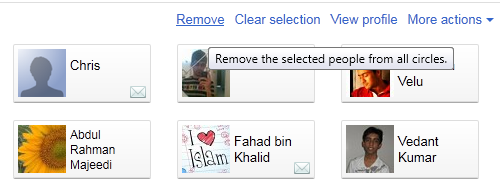
     6.   Now towards the right you will find some links as shown below,

Google+ invitation page

     7.   To remove someone simply click the Remove link. If you wish to block some one then click the More Actions link and choose Block  as shown below,

Block a person in Google+

      8.   You can also select multiple people and remove or block them all with a click of a mouse.

      9. That's it!

If you needed any help just feel free to post your question in the comments box below.

Source: http://www.mybloggertricks.com/2011/07/how-to-remove-or-block-person-in-google.html

Which Social Networking Buttons Should You Use On Blogs?

social-networking-buttonsWeb Traffic a word heard everywhere and to achieve it, web owners will try every possible method to push themselves to a better level. In order to achieve web traffic the simplest and most effective solution is the use of Major Social networking websites. With the rapid advancement and development of Internet, more and more bloggers and webmasters are getting addicted to social tools and services for the purpose of inorganic traffic flow. Social networks are expanding widely and every year we hear of another name. By far there are over 350 big and small social connecting sites. Just a month ago we heard of Google+ and God knows how many more will evolve in future.

[a name='more'][/a]

The question here is that which social buttons should you use in order to increase the number of your unique visitors and thereby daily page views. It really destroys readers interest when he sees too many buttons on your site, eating their internet speed with their heavy load time. Providing efficient and easy navigation to user should be our goal. If you add each and every social media buttons like Digg, reddit, delicious, Twitter, technorati, [a href="http://www.mybloggertricks.com/2011/06/add-facebook-like-button-below-post.html" target="_blank"]Facebook like button[/a], [a href="http://www.mybloggertricks.com/2011/05/add-facebook-like-and-send-button-to.html" target="_blank"]Facebook send button[/a], [a href="http://www.mybloggertricks.com/2011/06/add-google-1-button-to-your-blogger.html" target="_blank"]Google +1  button[/a], linkedin, stumbleupon and so on then obviously you are increasing your web [a href="http://www.mybloggertricks.com/2009/11/11-useful-tips-to-reduce-your-blog-load.html" target="_blank"]blog load time[/a] discouraging both visitors and search engines. Readers enjoy fast load time and search engine robots enjoy crawling data at a faster rate. According to Google new webmaster guidelines, all websites with slow load time are penalized by Google and will be ranked low in SERP (Search Engine Result Page). So lets select the best traffic value buttons for your blogs.

Give Priority To Big Social Networks

By big I mean social networking websites with extremely high traffic and audience value. Use social buttons which have the greatest number of online registered users for example Facebook. It has around 750 Million active registered users. The probability that your visitor is a Facebook user is near to 90% so make sure you Keep Facebook at the top of your priority list. Second comes Twitter with 175 Million users.  Third comes the new social Giant though new but soon it will expand like fire and this new giant is of course Google+. Fourth comes [a href="http://www.mybloggertricks.com/2011/06/add-linkedin-share-counter-buttons-to.html" target="_blank"]LinkedIn[/a] with over 100 Million active users.


Social Networks That Counts Second

Now lets look at the traffic value of some other social networking sites that comes in our second priority list.

These names include Stumbleupon with 7 Million users, Digg with approximately 1 Million registers users and reddit.

Now here goes the order of priority from best to least best:

  1. Facebook
  2. Twitter
  3. Google+
  4. Linkedin
  5. StumbleUpon
  6. Reddit
  7. Digg

You must Keep the first 4 buttons as the main social sharing buttons on your blogs and keep others on [a href="http://www.mybloggertricks.com/2011/06/how-to-put-your-blog-name-in-menu.html" target="_blank"]Addthis Share button[/a] which contains over 350 social networking sites. This way you keep the load time performance of your blog high and will receive a handsome traffic in return.

What buttons do we use?

You can see Twitter, Facebook Like, Stumbleupon and Google+ buttons as our main focused buttons on MBT Blog and that is contradictory to the priority list I shared above. I have skipped Linkedin because it is mostly used by business professionals and my site does not address them therefore I have used stumbleupon instead. So you should decide yourself which buttons are more important for your blog's growth and success.

You can use the following social networking widgets for customizing your blogs:

  • [a href="http://www.mybloggertricks.com/2011/06/add-1-button-and-other-share-buttons.html" target="_blank"]Add Social Networking buttons below titles[/a]
  •  [a href="http://www.mybloggertricks.com/2011/07/add-social-networking-buttons-below.html" target="_blank"]Social Networking widget below posts[/a]

I have published many widgets on social networking buttons. You can use the search box above to choose the best widget design for your blog.

Source: http://www.mybloggertricks.com/2011/07/which-social-networking-buttons-should.html

MBT is Now Amongst Top 5 Blogger Tutorials Blogs

DMOZ is the largest human-edited directory of the web. With over 85,559 editors. DMOZ’s Open Directory Project (ODP) has listed more than 4.5 Million quality websites in 590,000 categories. To some extent a major portion of Google data base is based on DMOZ listings and information is often fetched from there. To find out What is DMOZ directory and how can you submit your blogs to it then kindly read this post:

  • [a href="http://www.mybloggertricks.com/2010/06/surprisingly-mbt-blog-finally-added-to.html" target="_blank"]How To Submit Blogs To DMOZ?[/a]
Source: http://www.mybloggertricks.com/2011/07/mbt-is-now-amongst-top-5-blogger.html

How To Hide Relationship Status in Google+ Plus?

You can add as many people as you want. This will allow you the freedom to choose different people within a circle or even those not using Google+ by typing their Email IDs. I just hope you find this tutorial helpful and useful. If you needed any help with regard to your Google+ privacy settings then feel free to let me know. Would be a pleasure to help you out. Stay safe. :»

Source: http://www.mybloggertricks.com/2011/07/how-to-hide-relationship-status-in.html

Google+ Privacy: 10 Settings That You Must Know

How To Manage & Control Google+ Privacy Settings?

If you are a regular Google+ user then I will recommend that you turn of almost all options because obviously you wont need to spam your inbox with so many emails each day. You can directly read notifications on your Google+ account and find out for yourself who has mentioned you in a post, commented on your post, tagged you in a picture etc. etc.

10. How To Block or Remove a Person?

Now here comes the trouble makers. People who share sarcastic comments, posts or hateful links or videos with you. Of course the first thing that would come to your mind would be "How to block him or her?" In order to permanently block or remove a person from your circle or friend list then kindly read this post:

  • [a href="http://www.mybloggertricks.com/2011/07/how-to-remove-or-block-person-in-google.html" target="_blank"]Remove or Block a Person[/a]
Source: http://www.mybloggertricks.com/2011/07/google-privacy-10-settings-that-you.html

Add Google+ Button & Social Networking Buttons Below Post Title

  • Add [a href="http://www.mybloggertricks.com/2011/06/add-1-button-and-other-share-buttons.html" target="_blank"]Social Share Buttons[/a] To Blogger

Adding Social Networking Buttons To Blogger

  1. Go To Blogger > Design > Edit HTML
  2. Backup your template
  3. Search for <data:post.body/>
  4. and just above it paste the code given below,

<b:if cond='data:blog.pageType == &quot;item&quot;'>

<table border='0'>

<tr> <td> <a class='twitter-share-button' data-count='horizontal' data-lang='en'  data-via='mybloggertricks' expr:data-text='data:post.title' expr:data-url='data:post.url' href='http://twitter.com/share' rel='nofollow'/> <b:if cond='data:post.isFirstPost'> <script src='http://platform.twitter.com/widgets.js' type='text/javascript'> </script> </b:if> </td>

<td> <iframe allowTransparency='true' expr:src='&quot;http://www.facebook.com/plugins/like.php?href=&quot; + data:post.url + &quot;&amp;layout=button_count&amp;show_faces=false&amp;width=100&amp; action=like&amp;font=arial&amp;colorscheme=light&quot;' frameborder='0' scrolling='no' style='border:none; overflow:hidden; margin-left:20px; width:100px; height:20px;'/> </td>

<td><div style='margin-right:25px;'> <script expr:src='&quot;http://www.stumbleupon.com/hostedbadge.php?s=1&amp;r=&quot; + data:post.url'/></div> </td>

<td><div style='margin-right:5px;'> <g:plusone expr:href='data:post.url' size='medium'/> </div> </td>

<td> <!-- AddThis Button BEGIN --> <div class='addthis_toolbox addthis_default_style '> <a class='addthis_counter addthis_pill_style'/> </div> <script src='http://s7.addthis.com/js/250/addthis_widget.js' type='text/javascript'/>

<script type='text/javascript'> var addthis_config = { ui_cobrand: &quot;MY BLOGGER TRICKS&quot;, ui_header_color: &quot;#ffffff&quot;, ui_header_background: &quot;#0080FF&quot; } </script> <!-- AddThis Button END --></td>

</tr> </table>

</b:if><br/>


Replace mybloggertricks your twitter username.

5.  Note: If you have previously added the +1 button then you may skip this step. Now search for </head> and just above it paste the following code,

<script src='http://apis.google.com/js/plusone.js' type='text/javascript'> {lang: &#39;en-US&#39;} </script>

6.   Save your template and visit your blog to see it appearing on post pages. The widget will not be visible on homepage but on post pages only. If you want to show it on homepage too then delete the highlighted yellow lines.


Have fun! :>

Feel free to ask any questions you may have.

Source: http://www.mybloggertricks.com/2011/07/add-google-button-social-networking.html

Google+ : How To Download Photos and Videos?

Now you can simply click the white Download your data button or you can click the individual options below. The best is to download images, circles and contacts individually. Your shared videos will be in stream data so remember to download it too.

For downloading videos on Google+ remember that all videos will be uploaded on YouTube and then shared on your Google+ account. So you will need [a href="http://download.cnet.com/YouTube-Downloader/3000-2071_4-10647340.html" rel="nofollow" target="_blank"]YouTube downloader[/a] to download videos shared on Google Plus.

Source: http://www.mybloggertricks.com/2011/07/google-how-to-download-photos-and.html

Transfer Facebook Contacts To Google Plus - Trick!

         5.  Once you click the agree button all your yahoo contacts which includes your Facebook contacts will be added to Google+. You can now add them to circles and have fun sharing love and joy. Peace out! :>

Source: http://www.mybloggertricks.com/2011/07/transfer-facebook-contacts-to-google.html
 
Play : Agame | Y8 Games | Y3 Games
Copyright © 2011. Blogger Tips And Tricks 2012 - All Rights Reserved

Proudly powered by Blogger