Add Facebook Like Button Below Post Titles - New

[a href="https://blogger.googleusercontent.com/img/b/R29vZ2xl/AVvXsEiJHochp-XJ2G28Nt6PUP89yfVklJhSOqnEO4-CmwPDnCRWQoPUbm5g7uFgR7FnKvLmme9G-or6zkh5NB9te6HlvjN3iWVAuH6vaPhwzsy_DKZWs3MIFLkybVr75g2gVArFuWnIUuuVcbo/s1600-h/image%25255B3%25255D.png"]Like button[/a]I previously shared a [a href="http://www.mybloggertricks.com/2011/05/add-facebook-like-and-send-button-to.html" target="_blank"]Facebook Like button[/a] that included a [a href="http://www.mybloggertricks.com/2011/05/add-facebook-send-button-to-blogger.html" target="_blank"]send button[/a] by default. One of the problems I noticed with it was the load time. I then shifted to this new like button which loads like a flash at my internet connection speed. If you wish to add this new like button code just below the post titles of your blogger blogs then follow these easy steps:

[a name='more'][/a]

Adding Facebook Like Button To Blogger

  1. Go To Blogger > Design > Edit HTML
  2. Backup your template
  3. Click the "Expand Widgets Templates" Box
  4. Search for this,

<data:post.body/>

    5.    Just above it paste the code below,

<iframe allowTransparency='true' expr:src='&quot;http://www.facebook.com/plugins/like.php?href=&quot; + data:post.url + &quot;&amp;layout=button_count&amp;show_faces=false&amp;width=100&amp; action=like&amp;font=arial&amp;colorscheme=light&quot;' frameborder='0' scrolling='no' style='border:none; overflow:hidden; width:100px; height:20px;'/>

     6.   Save your template and you are done!


Visit your blog to see it working just fine just below post titles. Feel free to ask any questions you may have. 

Source: http://www.mybloggertricks.com/2011/06/add-facebook-like-button-below-post.html

Google PageRank Update June 2011

[a href="https://blogger.googleusercontent.com/img/b/R29vZ2xl/AVvXsEhY7cD1PMaSBOGuyGzb5igh3o-yJ4lfKUiRcxOp2WGV_bYPYpHxiYx4uymb_EjT4VVBu5xJu4sD5Y2QErEuVGqOiuTeaYy5-DecnYd4ElxDpiURQaat7fo-_BEicUmTQ9hyUfVr9YpL8sw/s1600-h/pr-pump%25255B2%25255D.gif"]Pagerank update[/a]Google PageRank updated just an hour ago and thanks to all my loyal and highly valuable readers MBT BLog is now a PR 4.0 Blog with 24K Alexa Rank Alhamdulillah!. I am thankful to Allah Almighty for all His support and blessings. I wish and pray that you guys may too hear a good news day and night for the hard work that you do. It's a day to celebrate! Spent every day of my summer vocations trying to bring something new to blogosphere and a gift like PR and Alexa is a wish come true. [a name='more'][/a]Without your motivation and consistent feedback this would have never been possible. I thank all guest posters for being an immense support to mbt blog and all the readership. This blog is yours and it will remain yours. Peace and blessings! =d

I saw the PageRank shocking news at 6.15 PM GMT+ 27th June 2011.

Source: http://www.mybloggertricks.com/2011/06/google-pagerank-updated-2011.html

Google +1 Button will start appearing on search pages Globally


You can add the +1 Button to your blogger blogs by reading this tutorial:

  • [a href="http://www.mybloggertricks.com/2011/06/add-google-1-button-to-your-blogger.html" target="_blank"]Google +1 Buttons[/a]
Source: http://www.mybloggertricks.com/2011/06/google-1-button-will-start-appearing-on.html

Design Update For MONOP Blogger Template

Some complained that the footer widget in MONOP [a href="http://www.mybloggertricks.com/2011/06/releasing-priceless-template.html" target="_blank"]Blogger Template[/a] is not properly aligned with the rest of the blog post body. I have fix the design alignment with some changes that you can make your self. You just need to make these changes in your templates,

[a name='more'][/a]

PS: Fresh Copies Sent yesterday do not need to implement this change.


  1. Go To Blogger > Design > Edit HTML
  2. Backup your templates
  3. Search for this,

#lower {
    margin:auto;
    padding: 0px 0px 10px 0px;
    width: 960px;
background: #fff url([a href="https://blogger.googleusercontent.com/img/b/R29vZ2xl/AVvXsEibzy2uWMd7Hl0pvnIFSptT_mTiiNHfGHCJHxz3UZCl9FpJoynJfvbfabqjVdlACU3uhGTcyhmqoBD18Mpm65SLBgiNZd8jB5VsFhOivObwJ81VfTw2I_PD8_M2okKYXnKMsa8sQX3jHzk/s400/background.gif);"]https://blogger.googleusercontent.com/img/b/R29vZ2xl/AVvXsEibzy2uWMd7Hl0pvnIFSptT_mTiiNHfGHCJHxz3UZCl9FpJoynJfvbfabqjVdlACU3uhGTcyhmqoBD18Mpm65SLBgiNZd8jB5VsFhOivObwJ81VfTw2I_PD8_M2okKYXnKMsa8sQX3jHzk/s400/background.gif);[/a]
    }
    #lower-wrapper {
  background: #fff url([a href="https://blogger.googleusercontent.com/img/b/R29vZ2xl/AVvXsEibzy2uWMd7Hl0pvnIFSptT_mTiiNHfGHCJHxz3UZCl9FpJoynJfvbfabqjVdlACU3uhGTcyhmqoBD18Mpm65SLBgiNZd8jB5VsFhOivObwJ81VfTw2I_PD8_M2okKYXnKMsa8sQX3jHzk/s400/background.gif);"]https://blogger.googleusercontent.com/img/b/R29vZ2xl/AVvXsEibzy2uWMd7Hl0pvnIFSptT_mTiiNHfGHCJHxz3UZCl9FpJoynJfvbfabqjVdlACU3uhGTcyhmqoBD18Mpm65SLBgiNZd8jB5VsFhOivObwJ81VfTw2I_PD8_M2okKYXnKMsa8sQX3jHzk/s400/background.gif);[/a]
    margin:auto;
    padding: 10px 0px 20px 0px;
    width: 960px;
    border:0;
    }


   Replace it with this,

#lower {
    margin:auto;
    padding: 0px 0px 10px 0px;
    width: 960px;
background: #fff;
    }
    #lower-wrapper {
  background: #fff;
    margin:auto;
    padding: 10px 0px 20px 0px;
    width: 960px;
    border:0;
    }


     4.   Next Find this,

#credits {
    background: #AC0100;
    width: 960px;
    height: 30px;
    margin: 0;
    padding: 0;
   
}


and replace it with this,

#credits {
    background: #AC0100;
    width: 960px;
    height: 30px;
    margin-left: 10px;
    padding: 0;
        float:left;
   
}


   5. Finally find this code,


<div id='credits'>

<!--Removing The Credit Link will be taken as serious Copyright Violation-->

    <p style='float:left; padding-left:10px;'>&#169; 2011. All Rights Reserved | <a expr:href='data:blog.homepageUrl'><data:blog.title/></a> | Template by <a href='[a href="http://www.mybloggertricks.com'"]http://www.mybloggertricks.com'[/a] target='_blank'>Blogger Widgets</a></p>

<p style='float:right; padding-right:10px;'><a expr:href='data:blog.homepageUrl'>Home</a> | <a href='#'>About</a> | <a href='#'>Top</a> &#9650; </p>

</div>


copy-cut it and replace it just below this code,

<!-- end lower-wrapper -->


I hope now your MONOP Template looks more perfect. If you find these changes difficult to implement then you can ask for a fresh download copy by posting your EMAIL ID.

Source: http://www.mybloggertricks.com/2011/06/design-update-for-monop-blogger.html

Fixing Facebook Like Box Rendering Errors

[a href="https://blogger.googleusercontent.com/img/b/R29vZ2xl/AVvXsEgS8NNgjSkv0DzhEy_RxIHC6u6uxuRlVYhCvBadY9diJkWbtBotYzGiAPMPRIM8mOqatrQoWObX56a3DSI2GA3Q3ZXIZgCYNprrg7gIeCU0b5-MajVAjBnbPVlJwFUjUxm3RniDaQOpxYY/s1600-h/Troubleshooting%25255B5%25255D.jpg"]Troubleshooting[/a]The Custom Facebook [a href="http://www.mybloggertricks.com/2011/06/customize-facebook-like-box-with-css.html" target="_blank"]Like box[/a] will soon be adopted everywhere soon InshAllah however there is something you must know before adding it to your blogs. Most of you might have observed that upon adding the custom like box, you often receive that the plugin can not be rendered with this and that parameters.[a name='more'][/a] This happens when you add our custom code and the Facebook new Like button code together in your templates. There is one simple troubleshooting solution which is.


Remove Facebook Like + Send Button

If you have added the like button combined with the send button then kindly remove them and replace them with the Facebook Like Button Optimized version that I am using at the moment.

To remove the Like + Send button read this tutorial,

  • Facebook [a href="http://www.mybloggertricks.com/2011/05/add-facebook-like-and-send-button-to.html" target="_blank"]Like + Send Button[/a]

Add The New Like Button Code

To add the Like button alone which loads fast and is much better then read this,

  • Facebook [a href="http://www.mybloggertricks.com/2011/06/add-facebook-like-button-below-post.html" target="_blank"]Like Button[/a]

Let me know if you needed more help. This works like charm.

Source: http://www.mybloggertricks.com/2011/06/fixing-facebook-like-box-rendering.html

Password Protect Posts In Blogger!

2.    Go To [a title="http://www.vincentcheung.ca/jsencryption/" href="http://www.vincentcheung.ca/jsencryption/" target="_blank"]Encryption Page[/a]

You will see 4 boxes with names: key, Plain Text, Clipher Text and HTML Code.  We are only interested in the key, plain text and HTML CODE box. Follow these steps:

  • Enter a password in the Key Box

[a href="https://blogger.googleusercontent.com/img/b/R29vZ2xl/AVvXsEg6hBN9p-9Kfj_cxMuWF2BwFiUbJO0H0KsUDuiyMoPgOIMfcvtcM87pgWmZTAd-9Zo7bXBJAyKR2YS9HutwmN0to9JnLAy4XuglDdRj1NjQMNsmcfJaprUk-P6L_27QhG44cR6S4Cxwqp8/s1600-h/image27.png"]key box[/a]

  • Next Paste the code that you copies from your Blogger Editor into the Plain Text box

[a href="https://blogger.googleusercontent.com/img/b/R29vZ2xl/AVvXsEjbD0UiXpZQhg6igL1aHbVHT7GmvQPEaZWCJPP3DsFXbF-7bn27VhO-uyrMQD_Z4QoQ7P_my82hh98GhYURg2OU7Q4XbocHiO_hZ5H5SJ_FMb_cJgaVSdiqzY9PSiWE1_b7BOwRNRL7J2o/s1600-h/image25.png"]Plain Text Box[/a]


  • Hit the Encrypt Button below Plain Text box  
  • Copy the code from the HTML CODE box
    [a href="https://blogger.googleusercontent.com/img/b/R29vZ2xl/AVvXsEj-ilqwocUJdJ3Pmn5b4Z9_3vR9TjxyLdnp87GSnhsKqQBnlTQwVMkCXZdHBfuBGhXWWpeBPon4dgQKqu1wWz5ELN9f6ewAqORRp4Ba7k5xsHnP1MdSI3BLBhgoSkZ_umBsHOXJ6ez0q9A/s1600-h/image23.png"]html code box[/a]

This is the new look of the same post you created. You will see strange illogical characters but these characters contain your hidden text, images or multimedia. You can now use this HTML CODE in any of your posts and instead of seeing the big chunk of code, the visitor will see only a link that says: Show Encrypted text How? follow the next step:

3.   Now get back to your Blogger Editor. Create a New Post. Give your post a title and paste the HTML Code that you just copied inside your blogger Editor in the  Edit HTML Mode.  You can write anything in place of this text -> Show Encrypted text but make all changes in Edit HTML mode only.

[a href="https://blogger.googleusercontent.com/img/b/R29vZ2xl/AVvXsEg3M-Q5-BDV5pe3VhC4racipUV7_vBWl0M_YpG6g2BFCJsbQmJ42GxvIkiXDkZfY1Zm3ddyKmU-X3v1ndbf3cI4kIEUbEnklTi1Ro6XMhsG5zqc9y5VGqzneufJYXf3xJUUvs80ivcEpWE/s1600-h/image21.png"]encrypted text[/a]
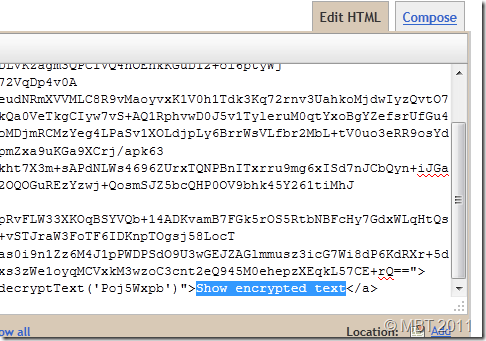
You can also add any message below or above the HTML CODE which contains your hidden text.

I just hope you may like this new discovery and you may find it helpful. Feel free to ask any questions you may have. Peace and blessings. :>

Source: http://www.mybloggertricks.com/2011/06/password-protect-posts-in-blogger.html

How To Update Public Stats In BuySellAds?

[a href="https://blogger.googleusercontent.com/img/b/R29vZ2xl/AVvXsEipwQGsloEImW2qvwsvMPoqSHkq0MwKaHtFIm4yAwvRBPekuAYuUDD4frH6Xeakvp18TdxUq30cQkNogwFYPtShNzv7MBEoDh03yOp_MtUdSt41y2lPz3KISN1zoZA9f_imvtx3_CTjOf4/s1600-h/UPDATE-BSA-STATS%25255B22%25255D.gif"]UPDATE-BSA-STATS[/a]BSA updates your [a href="http://www.mybloggertricks.com/2011/06/pagerank-or-alexa-rank-which-one-is.html" target="_blank"]Alexa Rank[/a] and [a href="http://www.mybloggertricks.com/2010/01/how-to-inter-link-pages-smartly-to-flow.html" target="_blank"]PageRank[/a] very slowly and often you see the same old compete ranks for weeks. Keeping your public stats updated is be very effective for selling Ad spots. You can manually update your twitter, facebook, Subscribers number, Yahoo Inbound inks along with Alexa and PageRank. To do this follow the steps below:

[a name='more'][/a]


Update Public Stats in BuySellAds

  1. Go To your BSA account
  2. Click on Sell Ads
  3. Just next to your website thumbnail you will find a refresh link that says "Update Public Stats" as shown below,

[a href="https://blogger.googleusercontent.com/img/b/R29vZ2xl/AVvXsEjiCBB0wsBzIXjXqyqtGbLp629ts5WA6TzoZga7OUOqxeh2_PV6tK7s0TaPoUgfe9cCX3tvIYQhyphenhyphenu739ARHTHz974-5RHHragOaiNPidvwf20g8-Yq8ihHmP-isaTniuWS6mIF05Y1gYCg/s1600-h/image%25255B3%25255D.png"]update BSA stats[/a]

     4. Simply hit it and after some processing, all your stats will convert to latest stats.


That's it! I hope this little tip proves helpful to you.

You may also enjoy to learn how to style your BSA Ads with mouse hover effects,

  • [a href="http://www.mybloggertricks.com/2011/06/how-to-style-buysellads-empty-ad-spots.html" target="_blank"]Customize BSA Ads[/a]
Source: http://www.mybloggertricks.com/2011/06/how-to-update-public-stats-in.html
 
Play : Agame | Y8 Games | Y3 Games
Copyright © 2011. Blogger Tips And Tricks 2012 - All Rights Reserved

Proudly powered by Blogger