Google+ Video Calling: How To Set Up a Video Call?

Google Plus video chatGoogle Plus is the name you hear everywhere today. Google+ uses all major services of Google thus making it the most complete social networking site ever. It gives you an option of both Chat and Video Chat. Amazingly you can not just have to worry about your privacy issues as you did on Facebook but now you can even talk to your friends face to face by making a video call straight from your own Google+ account! This is the plus point of Google+ over Facebook. Google developers have used the same Gmail video chat algorithm to provide you with an option of both chat and video calling. Having a webcam is not a must because you can still see your friends cam with highly quality audio and video. There are however some setup guide and installation steps that you must take to successfully make and receive video calls. Lets jump straight at the tutorial.

[a name='more'][/a]

Note: Voice and video in G+ only works with the newer version of browsers i.e. FF 2.0+, IE 6.0+, Safari 3.0+, and Google Chrome

How To Install & Enable Google+ Video Calls?

Follow these easy steps

  1. Go To [a href="http://www.google.com/chat/video" rel="nofollow" target="_blank"]Google+ Video Chat Plugin[/a]  and download the plugin. It takes 2-5 seconds to install it.

Google+ video chat     2.   Congratulation you have successfully set up a Video Calling plugin for your Google+

Now you will need to learn how to make a video call on Google Plus. For that kindly read the post below:

  • [a href="http://www.mybloggertricks.com/2011/07/how-to-make-and-receive-video-calls-on.html" target="_blank"]Make and Receive Video Calls on Google+[/a]

I hope you will enjoy these posts too:

  • [a href="http://www.mybloggertricks.com/2011/07/customize-google-plus-14-ways-to-change.html" target="_blank"]14 ways to Customize Google+[/a]
  • [a href="http://www.mybloggertricks.com/2011/07/how-to-invite-friends-in-google-plus.html" target="_blank"]How To Create Circles in Google Plus[/a]
Source: http://www.mybloggertricks.com/2011/07/google-video-calling-how-to-set-up.html

How To Make and Receive Video Calls on Google+ ?


You will also enjoy these tricks:

  • [a href="http://www.mybloggertricks.com/2011/07/customize-google-stream-layout.html" target="_blank"]Customize Google+[/a]
  • [a href="http://www.mybloggertricks.com/2011/07/customize-google-plus-14-ways-to-change.html" target="_blank"]Change Google Plus Look[/a] in 14 ways!
Source: http://www.mybloggertricks.com/2011/07/how-to-make-and-receive-video-calls-on.html

Google+ Keyboard Shortcuts and ASCII Tricks


▼

◄


◊


○

●


◘


◙


◦


☺

☻


☼


♀


♂


♣

♫


♥


▓


▒


░

╥


╪


♫


⅜


⅛

█


╠╛


♦


⅔


†

™


█


▀


⅓


Ω


♪


۞


№

→

₪


↕
۝


®


½


¾


¼


©

‡


¢


ﺁ ﷲ


≥

∞


√


∏
≈


♠

(-’๏_๏’-)


(◐ o ◑ )


(⊙…⊙ )


(•ิ_•ิ)


(•ิ_•ิ)

๏[-ิ_•ิ]๏


(/•ิ_•ิ)

(¯`•¸•´¯)

εїз

ღღღ


Why not use these artistic ASCII characters to create impressive and eye-catching posts and comments:

▁ ▂ ▃ ▄ ▅ ▆ █ 100%
─▀██▀───▀██▀─▀██──██─▀██▀▀ ▀─
──██─────██───██▄█▀───██▄█───
──██─────██───██▀█▄───██▀█───
─▄██▄▄█─▄██▄─▄██──██─▄██▄▄ ▄─ Thank you!

 ______  __                       __               __     
/__ _/ / /
/_/ / ___ __ ___ /' ____
_ ` /'__` /' _ ` , < /',__\
/ L._/ / \` /__, `\ _
_ _ _ __/._ _ _ _ _/____/ /_
/_/ /_//_//__//_//_//_//_//_//___/ /_/


_/_/_/_/_/ _/ _/ _/
_/ _/_/_/ _/_/_/ _/_/_/ _/ _/ _/_/_/ _/
_/ _/ _/ _/ _/ _/ _/ _/_/ _/_/ _/
_/ _/ _/ _/ _/ _/ _/ _/ _/ _/_/
_/ _/ _/ _/_/_/ _/ _/ _/ _/ _/_/_/ _/


 _____  _                    _            _ 
/__ | |__ __ _ _ __ | | __ ___ /
/ //| '_ / _` || '_ | |/ // __| / /
/ / | | | || (_| || | | || < __ /_/
/ |_| |_| __,_||_| |_||_|_|___//


@@@@@@@ @@@@@@ @@@@@@ @@@ @@@
@@@@@@@@ @@@@@@@@ @@@@@@@@ @@@ @@@
!@@ @@! @@@ @@! @@@ @@! @@!
!@! !@! @!@ !@! @!@ !@! !@
!@! @!@ !@! @!@ !@! @!! @!@
!!! !@! !!! !@! !!! !!! !!!
:!! !!: !!! !!: !!! !!:
:!: :!: !:! :!: !:! :!: :!:
::: ::: ::::: :: ::::: :: :: :::: ::
:: :: : : : : : : : : :: : : :::


 ___    _____  _____  _      _ 
( _` ( _ )( _ )( ) ( )
| ( (_)| ( ) || ( ) || | | |
| | _ | | | || | | || | _ | |
| (_( )| (_) || (_) || |_( )| |
(____/'(_____)(_____)(____/'(_)
(_)


                               __ 
__ _ _ _ _ | |
| | |_|| |_ ___ |_|| |_ | |
| |__ | || '_|| -_| | || _||__|
|_____||_||_,_||___| |_||_| |__|


 _______                              _ 
(_______) _ | |
_ ___ ____ _____ _____ _| |_ | |
| | (_ | / ___)| ___ |(____ |(_ _)|_|
| |___) || | | ____|/ ___ | | |_ _
_____/ |_| |_____)_____| __)|_|


  ___|                |   |
| __| _ _` | __| |
| | | __/ ( | | _|
____|_| ___|__,_|__|_)


 _       __ ____  _       __ __
| | / // __ | | / // /
| | /| / // / / /| | /| / // /
| |/ |/ // /_/ / | |/ |/ //_/
|__/|__/ ____/ |__/|__/(_)


(¯`·._.·[ Oh Thank you Buddy! ]·._.·´¯)


°o.O Thank you Buddy! O.o°


×÷·.·´¯`·)» Thanks! «(·´¯`·.·÷×


,.-~*´¨¯¨`*·~-.¸-(_Beautiful!_)-,.-~*´¨¯¨`*·~-.¸


<º))))><.·´¯`·.Thank you!¸.·´¯`·.¸><((((º>


----•(-•Thanks Thanks!•-)•----


»-(¯`v´¯)-» Loved it! »-(¯`v´¯)-»


;)°¨¨°º°¨¨°(*)(_.·´¯`·«¤°Thank you Pal!°¤»·´¯`·._)(*)°¨¨°º°¨¨°;)


«««««««Thank you Dude!»»»»»»»»


Hope you find these simple shortcuts useful and easy. We will keep you updated with more Google+ tricks within this week. Make sure you don't miss any tutorial and subscribe via Email for free by [a href="http://feedburner.google.com/fb/a/mailverify?uri=TntByStc&loc=en_US" rel="nofollow" target="_blank"]clicking here[/a].


You may also find these tricks fun to apply:


  • [a href="http://www.mybloggertricks.com/2011/07/customize-google-plus-14-ways-to-change.html" target="_blank"]Customize Google Plus in 14 ways[/a]

Source: http://www.mybloggertricks.com/2011/07/google-keyboard-shortcuts-and-ascii.html

How to Increase Website Traffic With Google+ Sparks?

      5.   By default the Public circle will be chosen which means your link will be shared live on Google+ with all users. You must also choose your custom circles to drive even more traffic by clicking the "+Add more people" link

       6.    Finally hit the green share button and you are all done!

Your posts will be shared automatically in sparks/categories according to your Post Tiltle keywords. Repeat the same process every day for all fresh content on your webpage. You must do this even for already published blog posts.

How to Remain on Top on Sparks page?

The only logical answer is that share links as much as you can. As I earlier said that only real-time updates make it to the first page. Therefore you must  Post each and every webpage link of your website regularly and do this as much as time allows you. You will find a significant change in your analytics and once you get an idea on how to use it you can expect to receive thousands of visitors per day from Google+ alone. I hope this little info proves helpful to all of you. If you have any suggestion, question or brilliant Google+ traffic tip then you are most welcomed to share it with us using the comments box below. Stay safe and be happy always. Peace out! :»

Source: http://www.mybloggertricks.com/2011/07/how-to-increase-website-traffic-with.html

Download Facebook Template Design For Custom Tabs


Facebook IFRAME TabsUPDATE:[a href="http://www.mybloggertricks.com/2011/07/download-facebook-template-design-for.html"] Facebook Template Custom Tab2[/a] now available. 

Releasing yet another design template for Facebook Static IFRAME Custom Tabs. This new design includes one additional feature i.e. the Navigation menu. You can now add your most important links to the menu and if you wish you can even convert it into a drop down menu by reading our previous tutorials on [a href="http://www.mybloggertricks.com/2011/07/create-drop-down-menu-in-blogger.html" target="_blank"]drop down menus[/a]. The coding is kept simple so that you may easily customize the colors and fonts styles and sizes. You will need to edit the template in the Editor mode and paste this new design template code inside the source page of your [a href="http://www.mybloggertricks.com/2011/07/create-design-custom-tabs-on-facebook.html" target="_blank"]woobox's HTML Editor[/a]. I will be here to help you out with any help if needed. The template is compatible with all major browsers.

[a name='more'][/a]


[a href="https://www.facebook.com/pages/My-Blogger-Tricks/147104632016744?sk=app_182013565195418" rel="nofollow" target="_blank"]Live Demo[/a]


To use this template first you need to create a custom Facebook IFRAME tab by reading the tutorial below:


  • [a href="http://www.mybloggertricks.com/2011/07/create-custom-facebook-tab-with-custom.html" target="_blank"]Create Facebook TABS[/a]


Download Facebook Template


Kindly submit your Email ID below to receive tons of such design goodies for free straight in your inbox:


Check you inbox and activate your feeds. Once you have activated the feeds then kindly post the same ID in the comments box below with which you subscribed. We share resources with subscribers only to keep things clean.


Installation


Find all installation guide and help in this post:


  • [a href="http://www.mybloggertricks.com/2011/07/releasing-facebook-template-for-custom.html" target="_blank"]Installing IFRAME Templates[/a]


Customization


To edit the navigation menu Find this code,


<li><a href="#" ><span>Link 1</span></a></li>
  <li><a href="#" ><span>Link 2</span></a></li>
  <li><a href="#" ><span>Link 3</span></a></li>
  <li><a href="#" ><span>Link 4</span></a></li> 


Replace the hash(#) sign with your Page Links /URL and replace Link1, Link2, Link3 etc. with your Page Titles. If you wish to add or delete a tab then simply add or delete this line,


<li><a href="#" ><span>Link</span></a></li>


Terms of Use


All MBT resources are copyrighted content and can not be redistributed without our permission.

Source: http://www.mybloggertricks.com/2011/07/download-facebook-template-design-for.html

How To Remove or Block Someone in Google+ ?

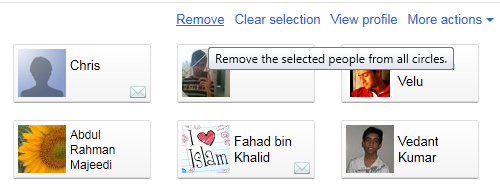
     4.  This page enable you to [a href="http://www.mybloggertricks.com/2011/07/how-to-join-google-plus-send-invites-in.html" target="_blank"]invite a friend[/a], [a href="http://www.mybloggertricks.com/2011/07/how-to-invite-friends-in-google-plus.html" target="_blank"]create a circle[/a], remove a friend from a circle and most importantly block a person.

     5.   Select anyone who you want to remove or block. Simply click a badge/person

     6.   Now towards the right you will find some links as shown below,

Google+ invitation page

     7.   To remove someone simply click the Remove link. If you wish to block some one then click the More Actions link and choose Block  as shown below,

Block a person in Google+

      8.   You can also select multiple people and remove or block them all with a click of a mouse.

      9. That's it!

If you needed any help just feel free to post your question in the comments box below.

Source: http://www.mybloggertricks.com/2011/07/how-to-remove-or-block-person-in-google.html

Which Social Networking Buttons Should You Use On Blogs?

social-networking-buttonsWeb Traffic a word heard everywhere and to achieve it, web owners will try every possible method to push themselves to a better level. In order to achieve web traffic the simplest and most effective solution is the use of Major Social networking websites. With the rapid advancement and development of Internet, more and more bloggers and webmasters are getting addicted to social tools and services for the purpose of inorganic traffic flow. Social networks are expanding widely and every year we hear of another name. By far there are over 350 big and small social connecting sites. Just a month ago we heard of Google+ and God knows how many more will evolve in future.

[a name='more'][/a]

The question here is that which social buttons should you use in order to increase the number of your unique visitors and thereby daily page views. It really destroys readers interest when he sees too many buttons on your site, eating their internet speed with their heavy load time. Providing efficient and easy navigation to user should be our goal. If you add each and every social media buttons like Digg, reddit, delicious, Twitter, technorati, [a href="http://www.mybloggertricks.com/2011/06/add-facebook-like-button-below-post.html" target="_blank"]Facebook like button[/a], [a href="http://www.mybloggertricks.com/2011/05/add-facebook-like-and-send-button-to.html" target="_blank"]Facebook send button[/a], [a href="http://www.mybloggertricks.com/2011/06/add-google-1-button-to-your-blogger.html" target="_blank"]Google +1  button[/a], linkedin, stumbleupon and so on then obviously you are increasing your web [a href="http://www.mybloggertricks.com/2009/11/11-useful-tips-to-reduce-your-blog-load.html" target="_blank"]blog load time[/a] discouraging both visitors and search engines. Readers enjoy fast load time and search engine robots enjoy crawling data at a faster rate. According to Google new webmaster guidelines, all websites with slow load time are penalized by Google and will be ranked low in SERP (Search Engine Result Page). So lets select the best traffic value buttons for your blogs.

Give Priority To Big Social Networks

By big I mean social networking websites with extremely high traffic and audience value. Use social buttons which have the greatest number of online registered users for example Facebook. It has around 750 Million active registered users. The probability that your visitor is a Facebook user is near to 90% so make sure you Keep Facebook at the top of your priority list. Second comes Twitter with 175 Million users.  Third comes the new social Giant though new but soon it will expand like fire and this new giant is of course Google+. Fourth comes [a href="http://www.mybloggertricks.com/2011/06/add-linkedin-share-counter-buttons-to.html" target="_blank"]LinkedIn[/a] with over 100 Million active users.


Social Networks That Counts Second

Now lets look at the traffic value of some other social networking sites that comes in our second priority list.

These names include Stumbleupon with 7 Million users, Digg with approximately 1 Million registers users and reddit.

Now here goes the order of priority from best to least best:

  1. Facebook
  2. Twitter
  3. Google+
  4. Linkedin
  5. StumbleUpon
  6. Reddit
  7. Digg

You must Keep the first 4 buttons as the main social sharing buttons on your blogs and keep others on [a href="http://www.mybloggertricks.com/2011/06/how-to-put-your-blog-name-in-menu.html" target="_blank"]Addthis Share button[/a] which contains over 350 social networking sites. This way you keep the load time performance of your blog high and will receive a handsome traffic in return.

What buttons do we use?

You can see Twitter, Facebook Like, Stumbleupon and Google+ buttons as our main focused buttons on MBT Blog and that is contradictory to the priority list I shared above. I have skipped Linkedin because it is mostly used by business professionals and my site does not address them therefore I have used stumbleupon instead. So you should decide yourself which buttons are more important for your blog's growth and success.

You can use the following social networking widgets for customizing your blogs:

  • [a href="http://www.mybloggertricks.com/2011/06/add-1-button-and-other-share-buttons.html" target="_blank"]Add Social Networking buttons below titles[/a]
  •  [a href="http://www.mybloggertricks.com/2011/07/add-social-networking-buttons-below.html" target="_blank"]Social Networking widget below posts[/a]

I have published many widgets on social networking buttons. You can use the search box above to choose the best widget design for your blog.

Source: http://www.mybloggertricks.com/2011/07/which-social-networking-buttons-should.html
 
Play : Agame | Y8 Games | Y3 Games
Copyright © 2011. Blogger Tips And Tricks 2012 - All Rights Reserved

Proudly powered by Blogger